Pick and Place, For Real: Training ACT on the SO-ARM101
On this page
In my last two posts (Part 1, Part 2), I wrote about getting my first SO-ARM101 set up and working end to end — USB ports, CUDA versions, camera placement, wrist orientation. Those posts were mostly about the environment; I didn’t go into much depth on the task itself.
This post is about actually finishing the task properly: picking up a block and placing it into a tray, trained with ACT on the SO-ARM101. It came down to four steps.
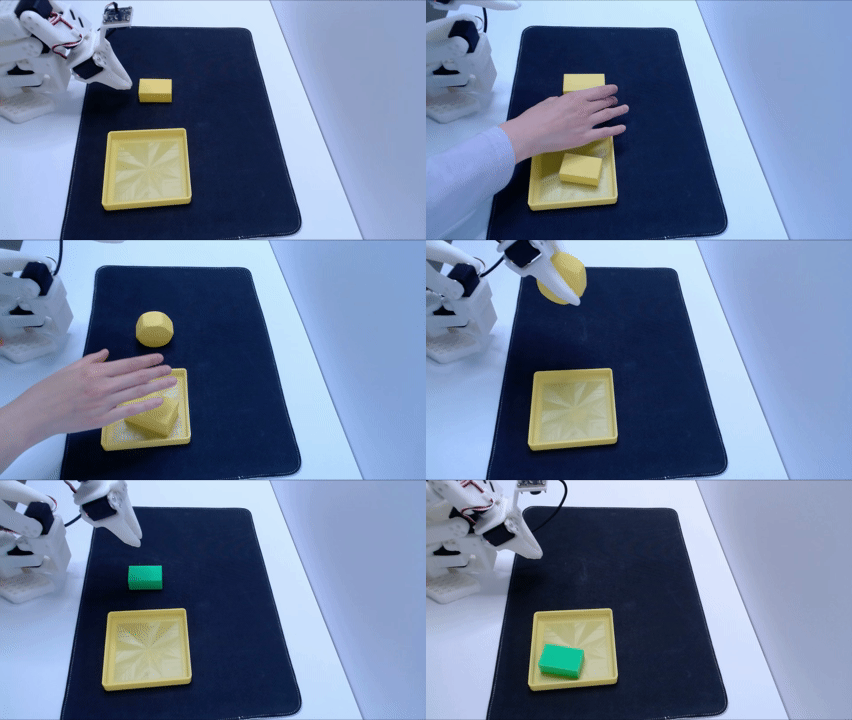
1. Design the Task
Pick-and-place is the classic starter task for the SO-ARM101 for good reason: pick a block up here, place it in a tray over there. Simple to define, simple to demonstrate, and a good first test of the whole pipeline.
For the “pick” and “place” objects themselves, I started with whatever was already sitting on my desk: a red squishy ball and a random basket.
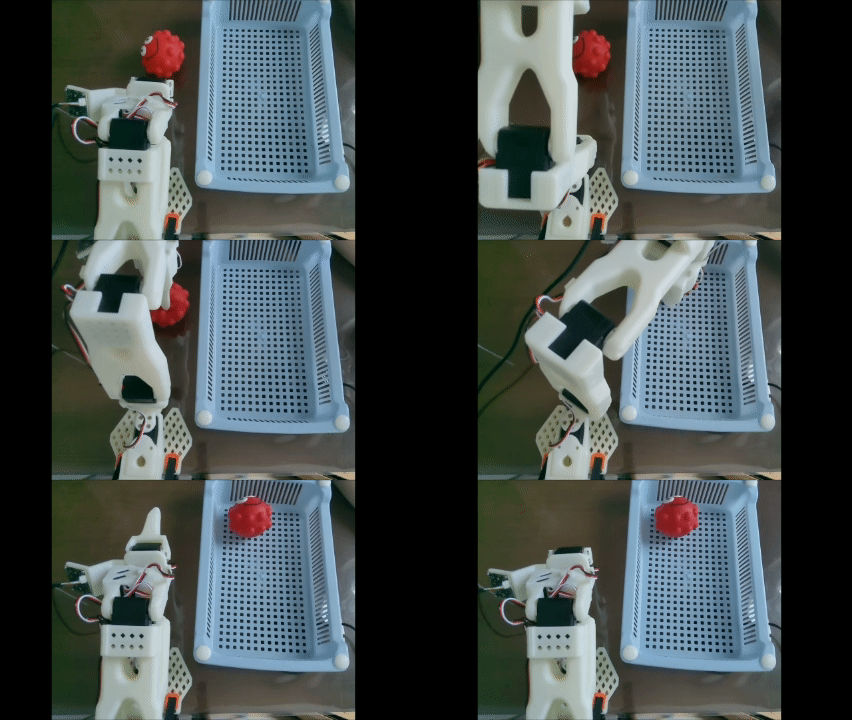
It didn’t go well. The ball rolled. Every time I set it down, it ended up in a slightly different position and orientation, since the sphere (with bumps) has no stable resting pose to speak of. Not to mention that the ball is bouncy when dropped into the basket and has a giant smiley face on it. The basket wasn’t sitting flat, so it wobbled whenever the arm bumped it, meaning the target itself wasn’t even in a fixed place from episode to episode.
I had accidentally introduced a huge amount of task variation that had nothing to do with the skill I was trying to teach. The policy wasn’t just learning “pick up a ball and place it in a basket” — it was being asked to somehow average over an object with random orientation and a target that moved on its own.
So I designed and 3D printed my own tray and block instead. The tray was adapted from the Gridfinity card game tray model, while the blocks are from the shape object library in Prusa Slicers. You can download my model on MakerWorld here.
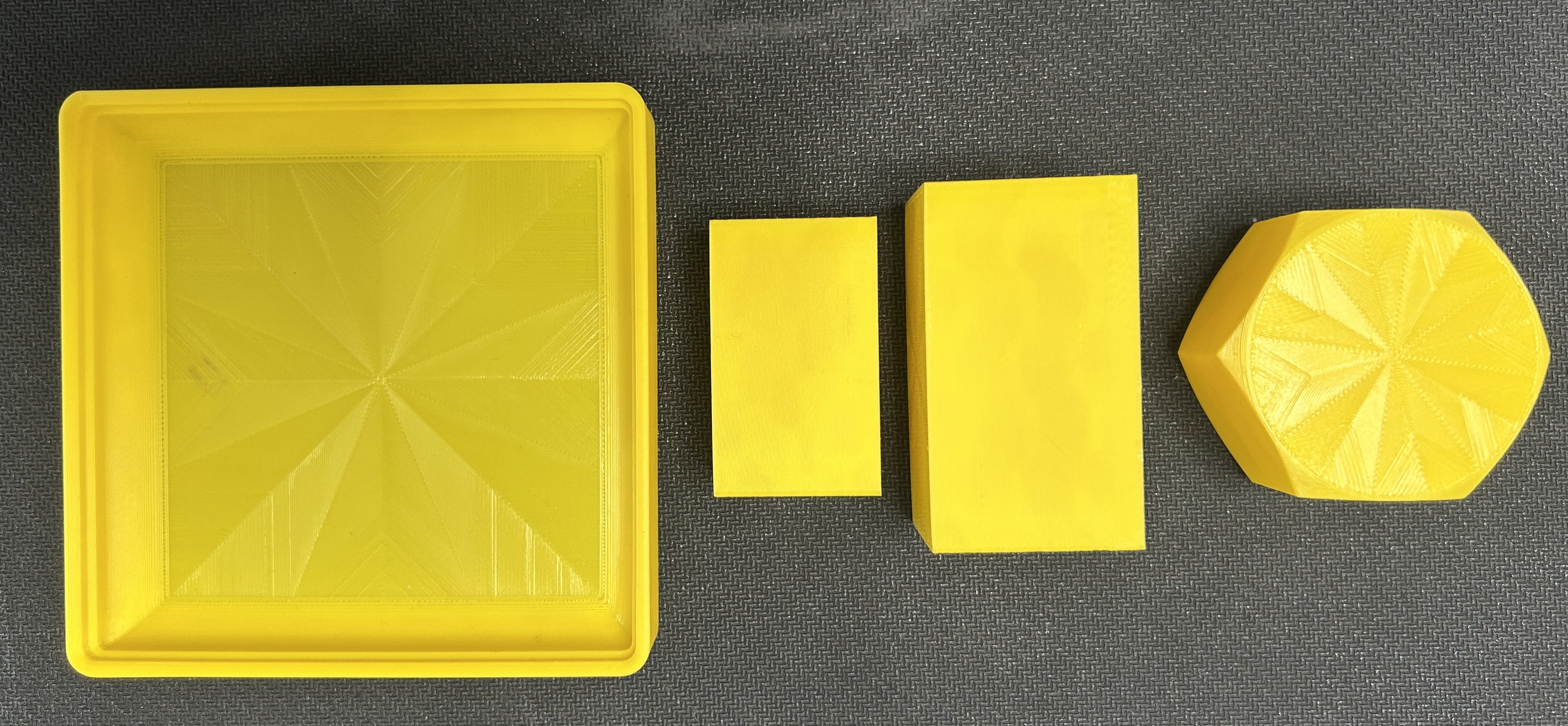
Note that in my training dataset, I only performed pick and place task on the smallest rectangular box (22.5 X 50 X 30mm), but we will see later how this generalizes to other shapes as well.
That gave me a setup with exact, repeatable dimensions, clean, consistent color, a set of different shaped objects to play with, and a tray that sits flat and is proportional to the size of the block. Combined with the lightbox from the last post, the workspace was now about as controlled as I could make it on a desk.
2. Collect the Dataset
With the printed objects and clean environment in place, I recorded a new dataset: place-yellow-rectangle-lightbox.
A few things I paid attention to while collecting:
- Starting position. Every episode started from the same neutral pose with the block already visible in both camera views — the exact lesson from Part 2 of my last post about the wrist camera needing to see the object from frame one.
- Consistent resets. After placing the block, I reset the arm back to its original starting position before setting up the next episode, so the start of episode was consistent instead of drifting based on wherever the arm happened to end up.
Fixing these data collection issues upstream meant that I only needed around 40 episodes to train a usable policy — roughly half the data of the initial dataset I collected, while still leading to a higher quality model.
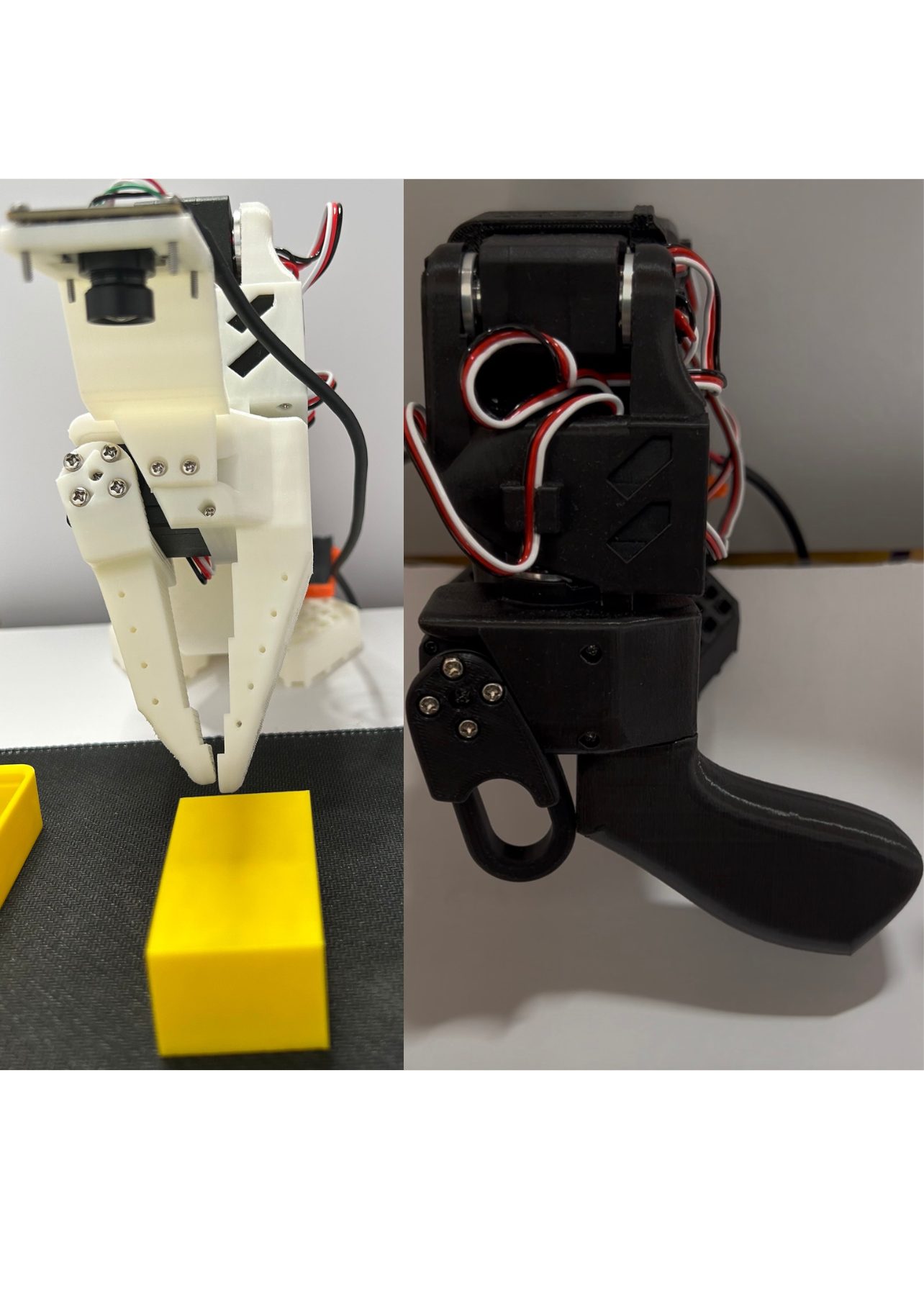
One optimization that made collection much faster: tuning the episode and reset timing. After a few practice runs, I found I could reliably do the task itself in about 15 seconds, and only needed about 5 seconds to reset the environment between episodes. Locking those numbers in with --dataset.episode_time_s and --dataset.reset_time_s kept every episode a consistent length and cut out a lot of the dead time I used to spend deciding when to stop recording.
The other thing that made a big difference was the video encoding step. Initially, there was a long pause at the end of every episode while the video got flushed — sometimes over a minute of idle waiting. Two changes fixed this:
- Lowering the overhead camera resolution. Dropped from 1920×1080 down to 1280×720 to reduce the amount of data to encode.
- Overriding the default encoding setting to
--dataset.streaming_encoding=true. This encodes video during recording instead of all at once after each episode ends, so there’s no more post-episode flush to sit through.
Together, those two changes made data collection fast and predictable, gated only by the episode/reset seconds I set rather than an unpredictable encoding step. This is what the full collection command looked like:
lerobot-record \
  --robot.type=so101_follower \
  --robot.port=COM5 \
  --robot.id=my_awesome_follower_arm \
  --teleop.type=so101_leader \
  --teleop.port=COM6 \
  --teleop.id=my_awesome_leader_arm \
  --robot.cameras="{
    front: {type: opencv, index_or_path: 0, width: 640, height: 480, fps: 30},
    overhead: {type: opencv, index_or_path: 2, width: 1280, height: 720, fps: 30}
  }" \
  --dataset.repo_id=dorisjlee/place-yellow-rectangle-lightbox \
  --dataset.num_episodes=5 \
  --dataset.single_task="Place Rectangle in Box based on Color" \
  --dataset.rgb_encoder.vcodec=h264 \
  --dataset.episode_time_s=15 \
  --dataset.reset_time_s=10 \
  --dataset.streaming_encoding=true \
  --display_data=true
3. Train ACT
I trained an ACT (Action Chunking Transformer) policy on the dataset using LeRobot, following the same training workflow from the last post (WSL + a recent PyTorch nightly for the RTX 5060).
lerobot-train \
  --dataset.repo_id=dorisjlee/place-yellow-rectangle-lightbox \
  --policy.type=act \
  --policy.device=cuda \
  --output_dir=outputs/train/place_yellow_rectangle_act_v3 \
  --job_name=place_yellow_rectangle_act_v3 \
  --policy.repo_id=dorisjlee/place_yellow_rectangle_act_v3 \
  --wandb.enable=true \
  --batch_size=8 \
  --steps=50000 \
  --num_workers=4 \
  --policy.chunk_size=50 \
  --policy.n_action_steps=10 \
  --policy.n_obs_steps=2 \
  --policy.dim_model=256 \
  --policy.dim_feedforward=1024 \
  --policy.n_heads=4 \
  --policy.n_encoder_layers=3 \
  --policy.n_decoder_layers=1 \
  --policy.latent_dim=16
The result: place_yellow_rectangle_act_v3.
This is the first policy I’ve trained that I’d actually call reliable — not just “it worked once for the demo gif,” but consistently placing the block into the tray across repeated runs.
4. Evaluate: What Actually Generalizes?
To evaluate the trained policy, I ran it directly on the robot with lerobot-rollout:
lerobot-rollout \
  --robot.type=so101_follower \
  --robot.port=COM5 \
  --robot.id=my_awesome_follower_arm \
  --robot.cameras="{
    front: {type: opencv, index_or_path: 0, width: 640, height: 480, fps: 30},
    overhead: {type: opencv, index_or_path: 2, width: 1920, height: 1080, fps: 30}
  }" \
  --policy.path=dorisjlee/place_yellow_rectangle_act_v3 \
  --strategy.type=base \
  --display_data=true
Overall, it’s able to perform the task well. It has learned the colors and matches them correctly. That said, it’s not perfect: the motion is a bit jittery, likely because I trained on grasps from a variety of grip positions by rotating the block to different orientations during data collection. It also has some trouble “finishing” the task cleanly and restarting for the next episode.
Base rollout
Getting the base task working was the goal, but the more interesting question was what the policy generalizes to. I trained on exactly one yellow rectangular block and one yellow tray. Nothing else was ever in the training data. So I started swapping things out, one variable at a time.
| What I changed | Did it work? |
|---|---|
| Shape of the block | ✅ Yes |
| Color of the block | ✅ Yes |
| Color of the tray | ❌ No |
| Block position | ❌ No |
| Multiple objects at once | ❌ No |
Shape generalization was better than expected. I swapped the rectangular block for a hexagonal block and a larger block, neither of which appeared in training, and both worked. The one clear failure mode: rolling the hexagon onto its flat side didn’t perform well — the policy consistently misjudged the grasp and missed. My guess is that the training data never contained a trajectory targetted at such a wide grip, so the policy had nothing to interpolate from.
Color generalization was also better than expected. I swapped the yellow block for a green one, and the policy grabbed it quite well despite training exclusively on yellow. This was a pleasant surprise — I expected color to matter more than shape, since it’s such a strong, low-level visual cue. Apparently the policy learned something closer to “grab the block-shaped thing” than “grab the yellow thing.”
Rollout with the box color changed
Changing the tray’s color broke it — the policy seemed to rely on the tray’s color as a fixed target rather than reasoning generally about the container. Moving the block to new positions also broke it, which makes sense in hindsight: 40 episodes covering a fairly narrow region of the workspace probably wasn’t enough to teach spatial generalization, only object-level generalization. And multiple objects on the table at once broke it, unsurprisingly, since there was never more than one object present during data collection.
You can find the two rollout dataset here and here.
Summary and Next Steps
Stepping back, training a simple pick and place task came down to four steps: design a task simple enough to nail end-to-end, build objects that remove unnecessary variation instead of adding it, collect a small but clean dataset, and train ACT on top of it. You can try this yourself. My trained model is up on Hugging Face, you can download my model on MakerWorld, and my full setup — hardware, environment, camera placement — is in the previous two posts (Part 1, Part 2). Let me know what you think!
Next up, to extend the capabilities of my SO-101, I’m going to train my robot to sort the blocks by color, with multiple blocks and multiple trays on the table at once. More to come in the next post!