Getting Started with the SO-ARM101, Part 2: Cameras, Data Quality, and the First Success
On this page
In Part 1, I wrote about wrestling my desk, cables, and compute environment into something reproducible: consistent workspace, reliable USB enumeration, and a working CUDA/PyTorch stack split across Windows and WSL. Once that stopped fighting me, the next problem was making sure my cameras were actually capturing what the policy needed to see.
3. Your Cameras Placement Define Your Training Dataset Quality
One thing I underestimated was just how important camera placement is.
With the standard SO-ARM101 setup, you’ll typically have two cameras:
- An overhead camera that sees the entire workspace.
- A wrist (egocentric) camera mounted directly on the follower arm.
Coming from computer vision, I knew cameras mattered. What I didn’t appreciate was that the camera setup is effectively part of your dataset, and therefore part of your model.
Unlike software, where you can usually refactor things later, changing your camera placement often means recollecting your entire dataset (which I learned the hard way).
Overhead Camera
If you search online, you’ll find dozens of SO-ARM101 tutorials, and almost every single one has a slightly different camera setup.
Some people mount the overhead camera directly above the robot. Others use a diagonal angle. Some zoom in tightly on the workspace, while others capture the entire table.
What the tutorials rarely explain is why they chose that particular angle.
I initially started with the overhead camera mounted directly above the robot because it seemed like the most logical setup. A top-down view removes perspective distortion, makes object locations easier to understand, and provides a consistent view of the entire workspace.
However, after collecting demonstrations, I realized the right camera angle depends on what information your policy needs to complete the task.
For a simple pick-and-place task, the overhead camera needs to provide several pieces of information:
-
Where are the objects?
The policy needs to know the location of the block, tray, and any other objects on the table. -
Where is the robot arm?
The policy needs to understand the current arm position and how the gripper should move relative to the object. -
What is the 3D state of the task?
This is where a perfectly top-down view starts to have limitations, since it is missing visual information in the z-direction.
A direct overhead view is excellent for understanding where things are horizontally, but it provides very little information about depth and height. For example, when the robot raises or lowers its arm, that motion can be difficult to infer from a pure top-down view because the vertical movement happens along the camera’s viewing axis.
This became especially noticeable during grasping. The camera could clearly see the block and the gripper moving across the table, but it had a harder time understanding how high the gripper was above the object or how much downward motion was needed to actually make contact.
A slightly angled overhead camera can provide additional depth cues while still capturing the entire workspace.
Wrist Camera: Egocentric View
Having overhead camera provides global scene context, while the wrist camera provided the robot’s local perspective during grasping.
The second camera in the SO-ARM101 setup is the wrist camera, sometimes called the egocentric camera (labelled as front in lerobot). Unlike the overhead camera, which is fixed, the wrist camera moves with the robot and sees the world from the robot’s perspective.
Many imitation learning policies—including the default LeRobot examples—use both camera views. The overhead camera provides global context (where objects are on the table), while the wrist camera captures fine-grained details as the robot approaches, grasps, and manipulates objects. Together, they give the policy a much richer understanding of the scene than either view alone.
One thing to note is that not every SO-ARM101 kit includes a wrist camera (this is one thing to pay attention to when purchasing a kit). My kit from SeeedStudio came with one pre-installed, but if you’re building your own robot or purchased a version without it, you can also 3D print the camera bracket.
Wrist Camera: Starting Orientation Matters
The wrist camera is not just about where you mount it. The starting orientation of the wrist itself matters just as much.
The SO-ARM101 wrist camera is mounted on the follower arm, which means the camera view changes as the robot moves. Unlike a fixed overhead camera, the robot is effectively moving its own viewpoint throughout the task.
One mistake I made early on was not paying enough attention to the robot’s initial wrist orientation before collecting demonstrations.
I assumed that as long as the robot eventually moved toward the object, the camera would capture enough information.
That was wrong.
The beginning of each episode matters. The policy is making its first decision based on the observations available at the start of the demonstration. If the object is not visible in the wrist camera’s initial frame, the model has no way of knowing that the object exists from that viewpoint.
For my task, I found that starting with the wrist camera naturally pointed toward the workspace worked best. The gripper could remain in a neutral position while the camera already had visibility into the task area.
This also made teleoperation much more ergonomic. Instead of rotating the wrist into an awkward position before every demonstration, I could start every episode from the same consistent pose.
A good rule of thumb:
Before collecting demonstrations, position the robot exactly how it will start during deployment, then look through the camera feeds. What does the robot actually see?
One subtle detail that I did not see discussed much in tutorials is the exact starting orientation of the wrist camera.
The way the SO-ARM101 is designed, it is very natural to assume that the resting position is with the gripper handle pointing downward. The physical design almost encourages this—it looks like the “neutral” position of the arm.
However, for teleoperation and data collection, I found that this is not actually the best starting pose.
The position that worked best for me was having the wrist camera at the 12 o’clock position relative to the gripper. In other words, when the follower arm is in its neutral starting pose, the wrist camera should naturally look forward toward the workspace instead of pointing off to the side.
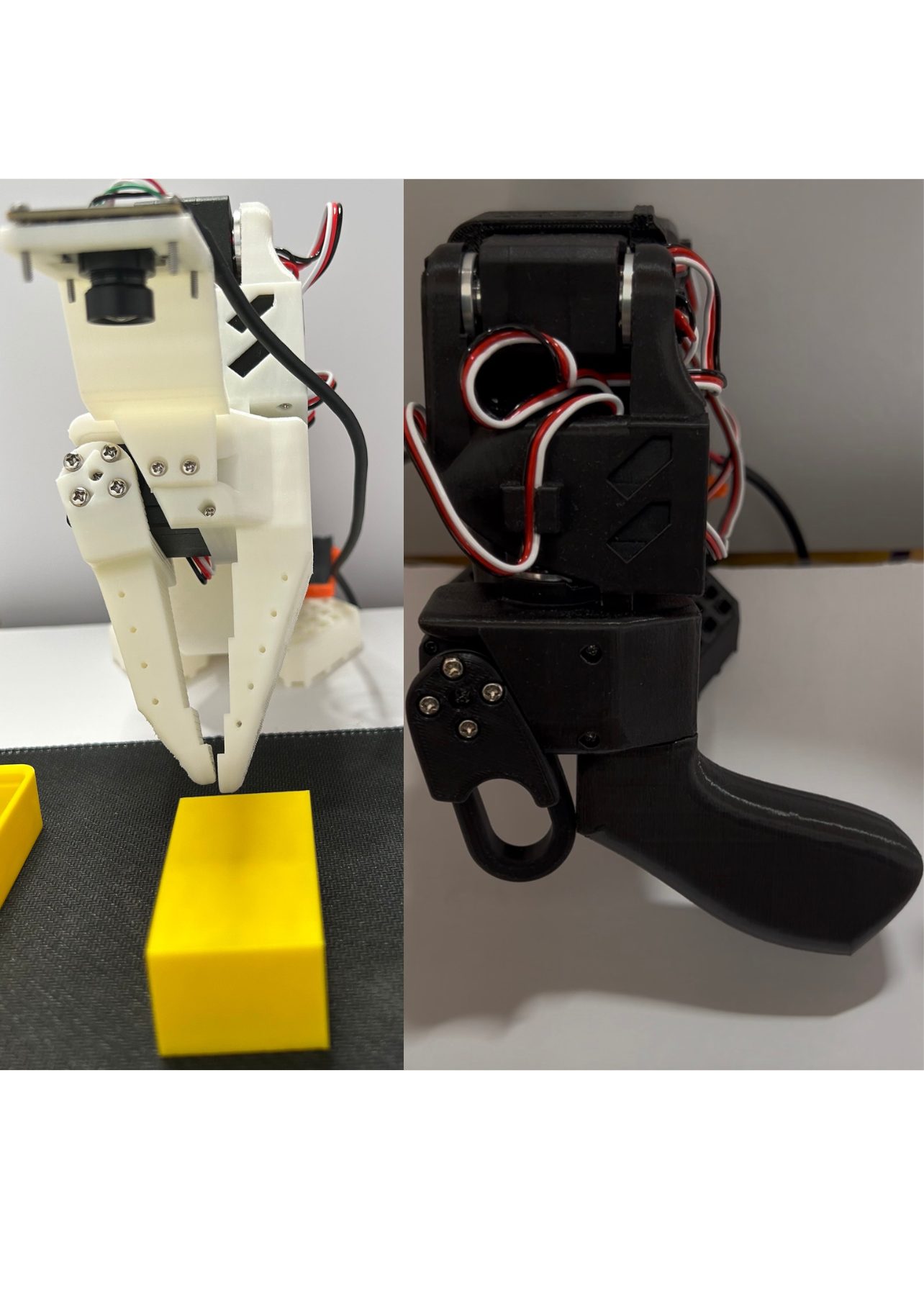
The leader arm should also be held in a similar neutral orientation during teleoperation.
This ended up being important for a few reasons.
First, it gives the wrist camera the correct initial view. Before the robot starts moving, the camera can already see the workspace and the object it needs to interact with. This matters because the policy can only make decisions based on the observations available in the video frames. If the object is not visible at the beginning of the episode, the model has no way to know where it is.
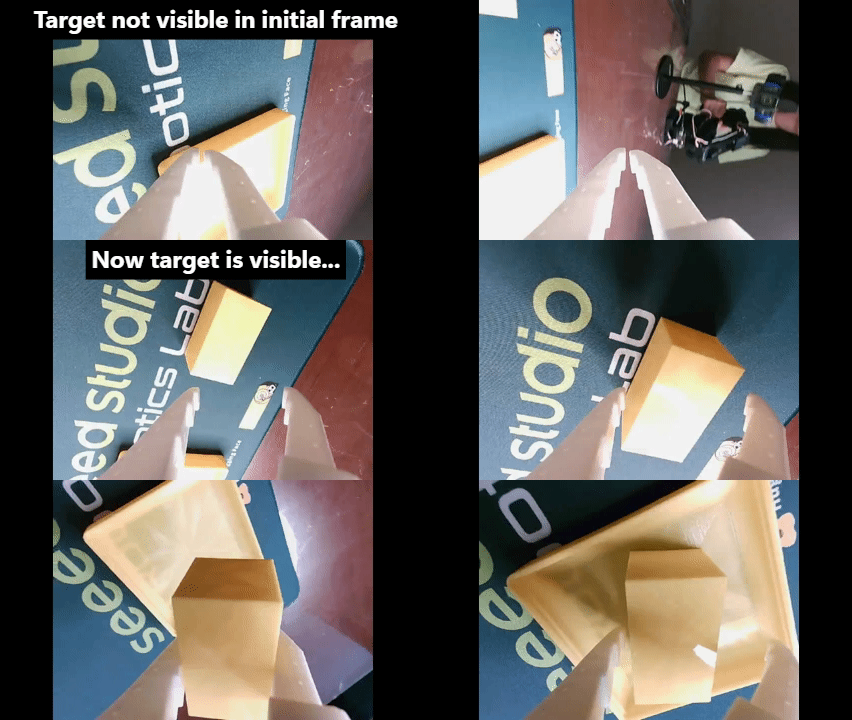
Second, it is much more ergonomic for collecting demonstrations. With the wrist camera positioned correctly, I can hold the leader arm naturally without constantly twisting my wrist to match the follower arm. Since collecting a dataset means repeating the same motion dozens or hundreds of times, small ergonomic issues quickly become painful and can affect the consistency of demonstrations.
One small teleoperation trick that also helped: I used my other hand to open and close the gripper during demonstrations.
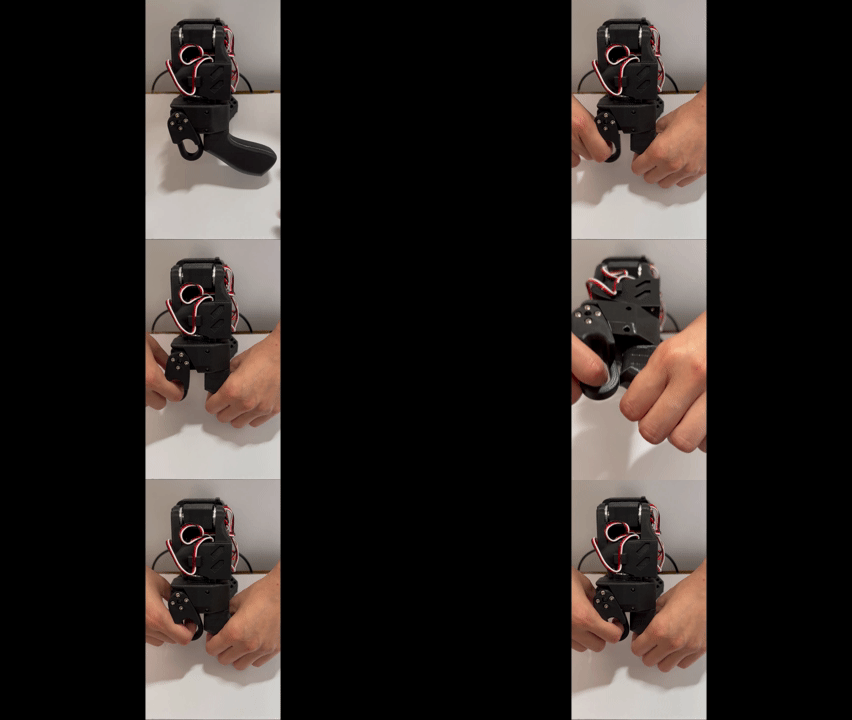
While it is possible to manipulate everything with one hand, I found it much easier and more natural to use two hands—one hand controlling the leader arm movement and the other hand operating the gripper. This gave me better control and reduced awkward finger movements, especially when collecting many episodes back-to-back.
This is one of those details that seems obvious only after you discover it. The robot’s mechanical “resting position” is not necessarily the best data collection position. You need to think about both perspectives: what is comfortable for the human collecting demonstrations and what information is available to the robot at the start of every task.
Inspect Your Recordings!!!
This is probably the simplest advice I can give, and also the mistake that cost me the most time:
Always inspect your recordings from both camera views before collecting a large dataset.
Do not assume your setup is correct just because the robot looks fine while you are teleoperating.
I learned this the hard way.
I collected 80 episodes of demonstrations, trained a policy, and spent time debugging why the robot was not performing the task correctly. Eventually, I went back and inspected the videos carefully and realized the problem was obvious:
The wrist camera never saw the object in the first frame of the episode.
The object was visible to me. It was visible in the overhead camera. But it was not visible from the robot’s egocentric view.
At that point, the question became:
How is the robot supposed to make a decision based only on the information available in its observations?
The robot does not know what I know. It does not have a human’s understanding of the workspace. It only has the pixels provided by its cameras.
This is one of the biggest mindset shifts when moving from software to robotics:
Think in the robot’s shoes. What information does the robot actually have?
Before collecting hundreds of demonstrations, I now check:
- Is the object visible in the initial frame?
- Are the relevant objects visible from at least one camera?
- Is the gripper visible during the important parts of the task?
- Does the camera angle provide enough information about depth and position?
- Is anything accidentally blocking the view?
A few minutes of watching your recordings can save hours of training and debugging.
A Small Note on Wrist Camera Privacy
One final thing to consider if you are uploading datasets publicly to the Hugging Face Hub:
The wrist camera records everything it sees.
Because the camera moves with the robot, it can easily capture parts of your room that you did not intend to share. As the wrist rotates, it may point toward you, your monitor, family photos, or other personal items.
Building a lightbox helped tremendously because the robot mostly saw the controlled workspace instead of my office. This is another reason why it is recommended to point the wrist cam downwards as the starting orientation. Rotating the wrist camera downward reduced how much of the surrounding environment appeared in the recordings.
What Finally Worked (and What I Learned)
About a month after unboxing the robot, everything finally clicked.
Not because I discovered some magical training trick, but because I had finally removed enough variability from the system that the entire pipeline became reproducible.
I had:
- A permanent workstation that stayed assembled
- Stable camera placement
- Consistent lighting
- USB devices that were reliably detected
- A GPU that PyTorch could actually use
- A workflow that allowed me to move between data collection, training, and deployment without constantly fighting my environment
Only then did the actual robotics learning loop start to feel real.
My first successful task was simple: pick up a yellow block and place it into a yellow tray.
By today’s standards, this is a tiny robotics task.
But after spending weeks wrestling with operating systems, drivers, cameras, USB ports, hardware setup, and dependency issues, seeing the robot complete that motion for the first time was incredibly rewarding.
Three computers, one new desk, and many debugging sessions later…
This is the final collected dataset after all the changes above — lightbox, fixed camera placement, corrected wrist orientation. It only took 40 episodes to get enough consistent demonstrations for training: dataset repo · visualizer
And here’s the resulting rollout after training — the policy was able to generalize quite well: dataset repo · visualizer
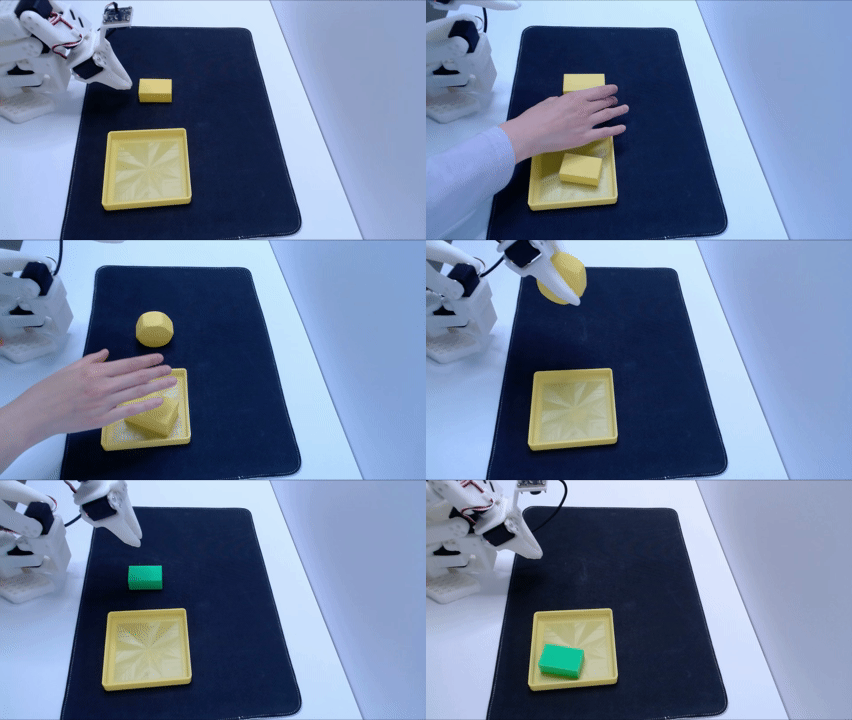
The most surprising part was how magical it felt when everything finally worked.
There were many moments where I wondered if I had underestimated this project. I had spent so much time debugging things that weren’t even “robotics” yet.
Then suddenly, the robot moved.
It picked up the object.
It completed the task. It even generalized to blocks with slightly different shapes, color, and sizes! More on this in next blogpost…
And for a moment, all of those frustrating details disappeared.
This was the first time I truly understood why robotics is such an exciting field: when the physical world and the software stack finally come together, it feels almost like magic.
But the biggest lesson I took away was that robotics iteration is fundamentally different from software iteration.
Coming from a software background, I am used to fast feedback loops. If something doesn’t work, I change a few lines of code, rerun the program, and immediately know whether my idea was correct.
Robotics is different.
Your development environment is not just your laptop. It is your entire physical and digital system:
- Your desk layout
- Camera placement
- Lighting
- USB connections
- Robot calibration
- Operating system
- Drivers
- CUDA + PyTorch
- Training pipeline
Every component has to work together before you can even start improving the model.
Even more importantly, every iteration has a cost.
Change the camera angle? You may need to recollect your dataset.
Change the workspace layout? Your previous demonstrations may no longer match the new environment.
Change the robot starting pose? Your data distribution has changed.
Improve your task? You may need to collect more demonstrations from scratch.
Unlike software, where old test cases often remain reusable, robotics data is tightly coupled to the physical world that generated it. The environment itself becomes part of the training distribution.
This was an incredibly humbling experience.
I came into this project expecting the hard part to be training the policy. Instead, I learned that the hardest part is building a reliable system where the physical world and the software stack can iterate together.
Getting the physical and digital environment working together is a huge part of the challenge. Once the environment stops fighting you, that’s when the real fun begins.
In my next post, I’ll go deeper into the actual Physical AI workflow: reproducing the block pick-and-place task, collecting and improving demonstrations, training ACT policies with LeRobot, and evaluating what transfers beyond the original setup. I’ll share the failures as much as the successes—what generalized surprisingly well, what didn’t, and what I learned from iterating with a real robot.