Getting Started with the SO-ARM101, Part 1: Your Desk and Your Computer Are Part of the Robot
On this page
I’m new to robotics, and I wanted to write down what getting started with the SO-ARM101 and LeRobot actually looked like—not the polished version, but the real one.
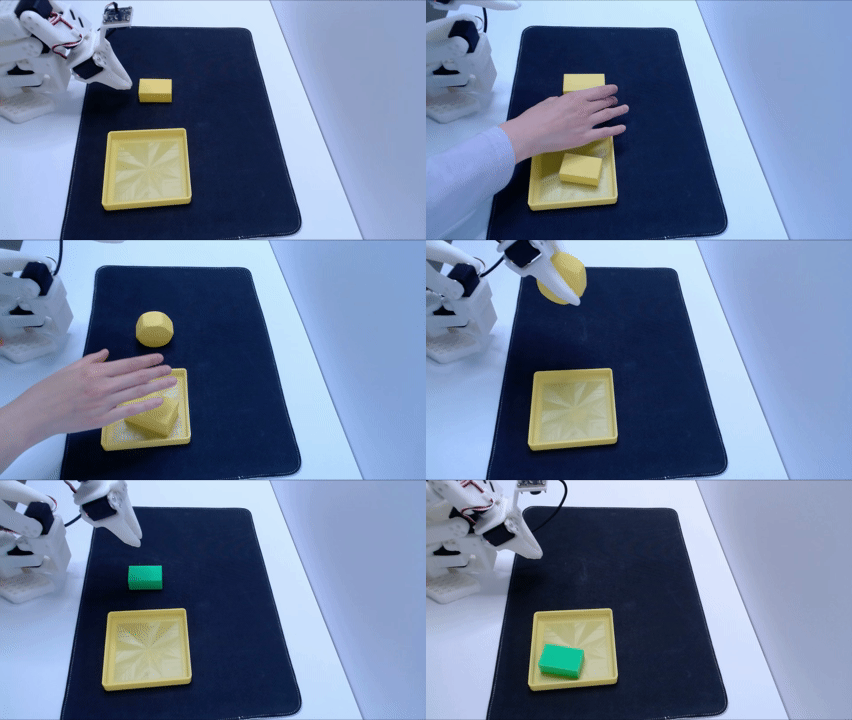
This was the task I wanted to train my robot to do, seems simple right?
Why I Picked the SO-ARM101
I wanted something that would let me experience the entire robotics learning cycle end-to-end.
The SO-ARM101 is designed to be a low-cost robot arm that’s relatively easy to get started with while still exposing the full robotics pipeline. It integrates tightly with Hugging Face’s LeRobot framework, which provides utilities for robot calibration, teleoperation, dataset recording, policy training, evaluation, deployment, and publishing datasets and models to the Hugging Face Hub.
I’d spent months reading robotics papers. I understood the theory behind imitation learning, behavior cloning, and transformer policies. But there were still questions that papers don’t really answer:
- What does “training a policy” actually look like in practice?
- How are demonstrations collected through teleoperation?
- How much effort goes into collecting good training data?
- What are the annoying engineering problems that everyone silently solves before writing the paper?
Of course, it would be cool to start with a humanoid or a robot dog, but I intentionally chose the robot arm. It fits on a desk, costs a fraction as much, and still lets you experience almost the exact same machine learning workflow. If I couldn’t make a single arm reliably pick up a block, I certainly wasn’t ready for a humanoid.
I’ll be fairly opinionated throughout this series because I ran into quite a few rough edges that aren’t obvious from reading tutorials.
I assumed this would be a fun weekend project.
This was where I was completely wrong.
It took me about a month before I had something working end-to-end: collecting demonstrations, training a policy, uploading it to Hugging Face, and deploying it back onto the robot.
Surprisingly, almost none of that month was spent learning robotics.
Instead, I spent most of my time debugging USB ports, PyTorch versions, CUDA drivers, operating systems, cameras, calibration files, and physical desk layout.
This is the guide I wish I had before starting. Hopefully it helps someone avoid a few of the same rabbit holes. This first part covers the workspace and compute environment — the stuff that has nothing to do with robotics and everything to do with whether robotics is even possible on your desk. Part 2 covers camera placement, data quality, and what it looked like when everything finally worked.
1. Your Desk Is Part of the Robot
The first thing nobody tells you is that your desk is a critical part of your robot setup.
I ended up rearranging my workspace multiple times, moving my existing workspace completely off to a new desk, and thinking far more about USB cable length/orientation and port availability than I ever expected.
Unlike software projects where everything lives inside your laptop, your robot lives in a physical development environment. This is where your robot sits, where your cameras are mounted, where the USB cables reach, and even where your laptop is located all end up mattering.
Cables and physical port management
The SO-ARM101 comes with two robot arms:
- Leader arm — the arm you manipulate by hand. Think of this as the remote control.
- Follower arm — the actual robot that performs the task and collects training data.
You’ll also likely have:
- an overhead camera
- a wrist camera mounted on the follower arm
- USB for the leader arm
- USB for the follower arm
That’s already four USB devices before you plug in your keyboard or anything else.
One lesson I learned the hard way: don’t underestimate cable management.
I originally tried using a USB docking station because my Macbook didn’t have enough USB ports. In my setup, this caused intermittent issues where cameras and serial devices weren’t always detected correctly. Sometimes devices simply wouldn’t appear, and when I ran lerobot-find-port, I wouldn’t see all of the robot arms I expected.
The reason this matters is that LeRobot needs to know exactly which physical device corresponds to which port. Unlike a mouse or keyboard, where the operating system only cares that the device is connected, a robotics application needs to distinguish between the leader arm, follower arm, and cameras. If those devices aren’t enumerated consistently, the software has no way to know what port it should be talking to.
For example, a typical teleoperation command explicitly maps each device to its corresponding COM port:
lerobot-teleoperate \
  --robot.type=so101_follower \
  --robot.port=COM5 \
  --robot.id=my_awesome_follower_arm \
  --teleop.type=so101_leader \
  --teleop.port=COM6 \
  --teleop.id=my_awesome_leader_arm \
  --robot.cameras="{
    front: {type: opencv, index_or_path: 2, width: 640, height: 480, fps: 30},
    overhead: {type: opencv, index_or_path: 0, width: 1920, height: 1080, fps: 30}
  }"
In my experience, plugging everything directly into dedicated USB ports was much more reliable than going through a dock. That also meant that I could not use my MacBook and had to move to using my iMac to have enough physical ports. I also got a longer USB cable for the follower arm so I could reach my laptop without relying on a hub.
All things combined these seem like tiny details, but it easily cost me several days of reconfiguration.
Relative position of leader and follower arm
One misconception I had early on was thinking the leader and follower arms should sit next to each other.
In reality, you should think of your leader arm as remote control. It doesn’t matter where you put the remote control, but what you are controling should stay fixed.
The cameras should only see the follower arm in your workspace. It should never have your teleoperating setup (your hands, the leader arm) in the view. During deployment, the leader arm disappears entirely, so including it in your training images would leak information that won’t exist at inference time.
Once I realized this, my setup became much simpler.
I optimized the follower arm, cameras, and lighting as one permanent workstation that I tried very hard not to disturb.
The leader arm became something I could move around whenever it was convenient, since it only needed a USB connection to the computer. If I had limited desk space, I could easily unclamp it and use the space for my keyboard and mouse.
Build a Consistent Workspace
One upgrade that ended up being far more valuable than I expected was building a dedicated workspace.
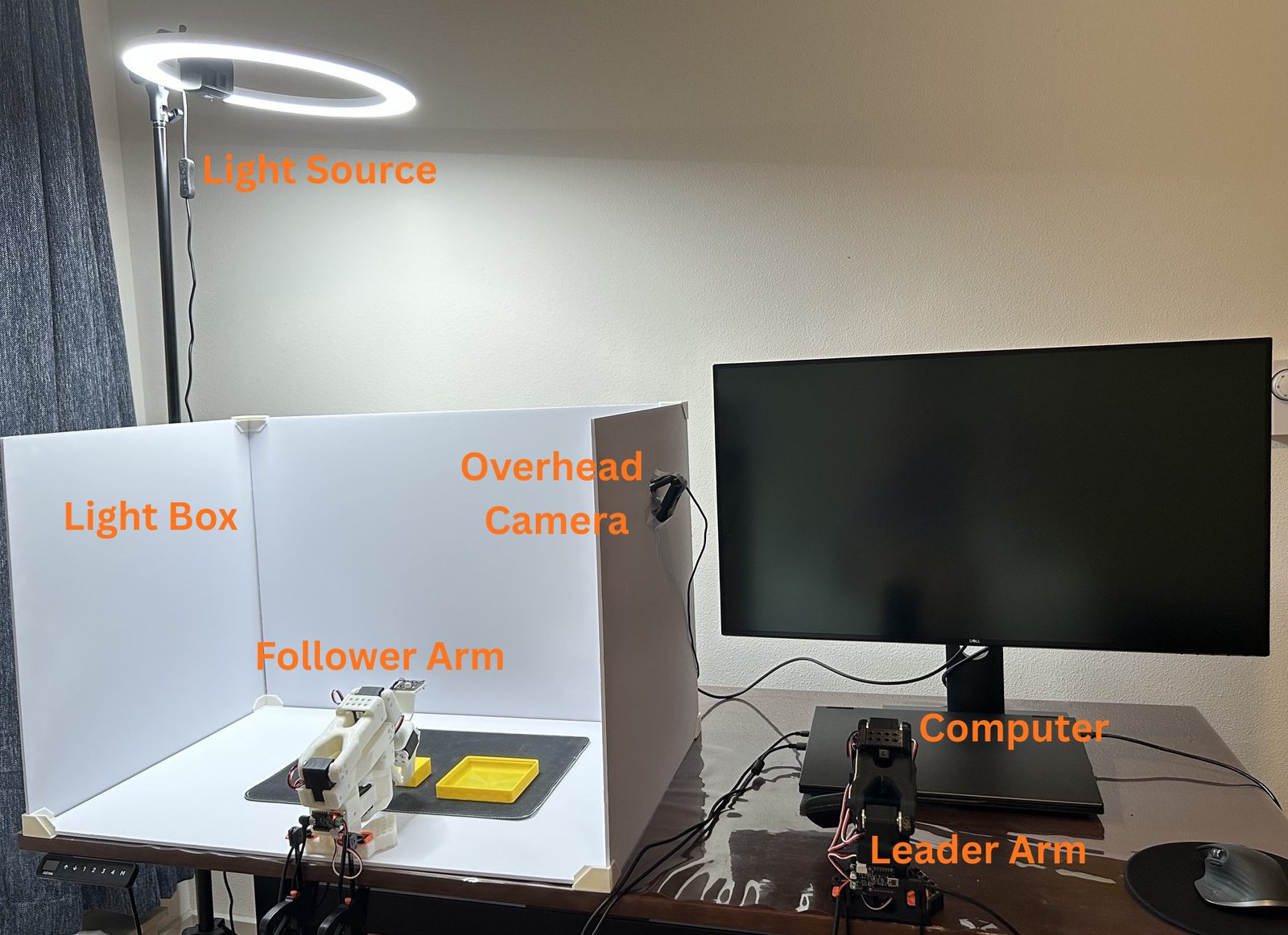
I based mine on the lightbox design created by Shane Reetz at NVIDIA. The design is surprisingly simple: it’s made from inexpensive foam poster boards held together with either tape or these clever 3D-printed corner joints. In less than an hour, you end up with something that looks remarkably close to a professional vision setup.
I did make one modification. Instead of adding the top foam board, I left the top open because I already had an overhead ring light mounted on a stand. This let me position the overhead camera directly above the workspace while also providing even, diffuse lighting across the entire scene.
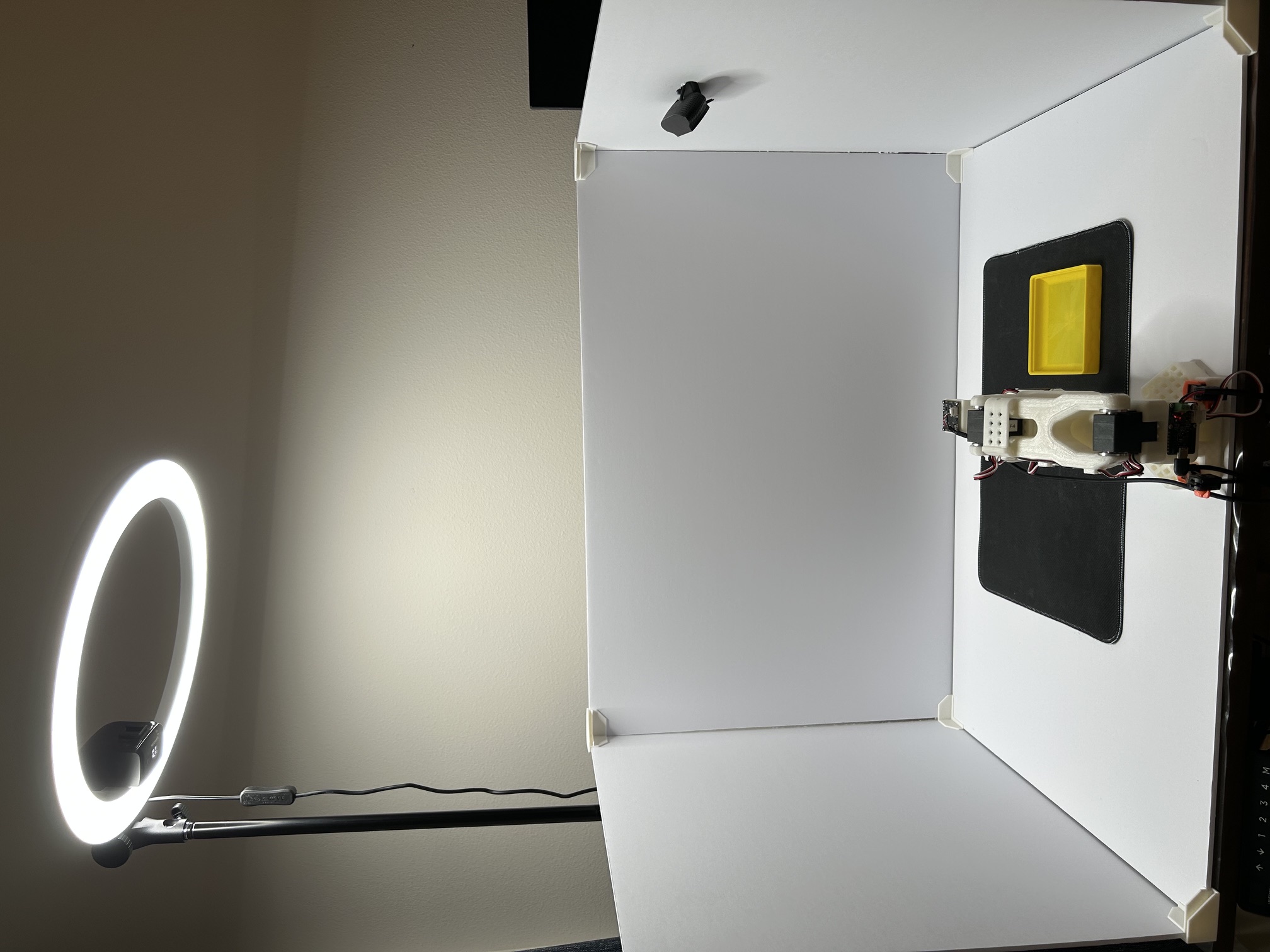
Technically, none of this is required. You can absolutely collect demonstrations on a regular desk.
However, after trying both setups, I found that having a dedicated workspace made the entire process dramatically easier:
- Consistent lighting throughout the day
- A clean, uncluttered background
- Fewer reflections and shadows
- Cameras that never needed to be repositioned
- A workspace that stayed exactly the same between data collection sessions
This consistency matters more than I initially expected. Every demonstration becomes visually similar, allowing the policy to spend its capacity learning the task instead of wasting it on changes in lighting, camera angles, or whatever happened to be sitting on your desk that day.
It also had an unexpected psychological benefit: I no longer had to rebuild my setup every time I wanted to collect more data. The robot always had a permanent “home.” I could sit down, plug in the USB cables, and immediately start recording demonstrations instead of spending the first 20 minutes adjusting cameras and clearing off my desk.
2. Choosing a Computer: OS, CUDA, and PyTorch
Everyone knows GPUs make machine learning faster.
What I didn’t appreciate until doing this project was just how much robotics depends on having the right GPU software stack.
The robot itself isn’t computationally expensive.
Training the vision model is.
I normally use Intel-based Macs, but PyTorch has effectively dropped support for GPU acceleration on Intel Macs. That meant training would be CPU-only, which is painfully slow even for relatively small imitation learning policies like ACT.
So I switched to a Windows gaming laptop that we had lying around the house that had a NVIDIA GeForce RTX 5060 Laptop GPU.
Problem solved?
Not even close.
The RTX 5060 is part of NVIDIA’s newer Blackwell generation (sm_120). That meant that my GPU is now too new for PyTorch and LeRobot. I had to rely on newer PyTorch nightly builds for full support. Unfortunately, the version of LeRobot I was using expected an older PyTorch versions so it led to many dependency conflicts.
I ended up stuck between two incompatible requirements:
- PyTorch new enough to support my GPU.
- PyTorch old enough to satisfy LeRobot’s dependency constraints.
I burned well over a week chasing version mismatches between CUDA, PyTorch, Python, drivers, and LeRobot.
Eventually I gave up trying to make everything work natively on Windows and moved training into Windows Subsystem for Linux (WSL), where the ecosystem was much better supported.
Even then, getting CUDA, NVIDIA drivers, and PyTorch all agreeing on compatible versions still took several more days of trial and error.
My Workflow Ended Up Split Across Two Operating Systems
Because robot serial ports and USB devices were easier to work with in Windows, while training was easier in Linux, I eventually settled on a hybrid workflow:
- Windows (Conda): Robot calibration, teleoperation, and dataset collection.
- WSL: Model training. Latest PyTorch leveraging NVIDIA GPUs.
- Hugging Face Hub: Upload datasets and trained checkpoints.
- Windows (Conda): Run inference back on the robot.
It’s not the workflow I would have designed, but once everything was working it was surprisingly smooth.
HuggingFace Hub Integration Was Excellent
One thing that genuinely impressed me was the HuggingFace integration that came as part of LeRobot’s default settings.
LeRobot makes uploading datasets and trained models almost effortless. Once uploaded, the Hugging Face Hub provides a dataset visualizer where you can inspect every recorded episode, replay demonstrations, and verify that your data actually looks correct before spending hours training.
I also learned to always verify that PyTorch is actually detecting your GPU before launching training. It’s surprisingly easy to accidentally install a CPU-only build of PyTorch and not notice until your training job crawls along.
Once everything was finally configured correctly, the experience became almost boring—in the best possible way.
A 5,000-step ACT training run finished in around 17 minutes on my RTX 5060, with GPU utilization consistently above 90%. Even larger runs of 30,000 steps completed in roughly 4 hours.
At that point, the machine learning stopped being the bottleneck.
Getting the environment working had been the real challenge all along.
With the desk, cables, and compute stack no longer fighting me, the next problem was making sure my cameras were actually capturing what the policy needed to see, and figuring out whether any of this had actually worked. That’s Part 2.